If you file your own taxes with deductible expenses, Tracklified flags them throughout the year so you can pull them all at tax time.
Tagging deductible receipts
On any receipt, apply the Tax label. The AI auto-applies it when it classifies a receipt into one of Tracklified's supported deduction categories.
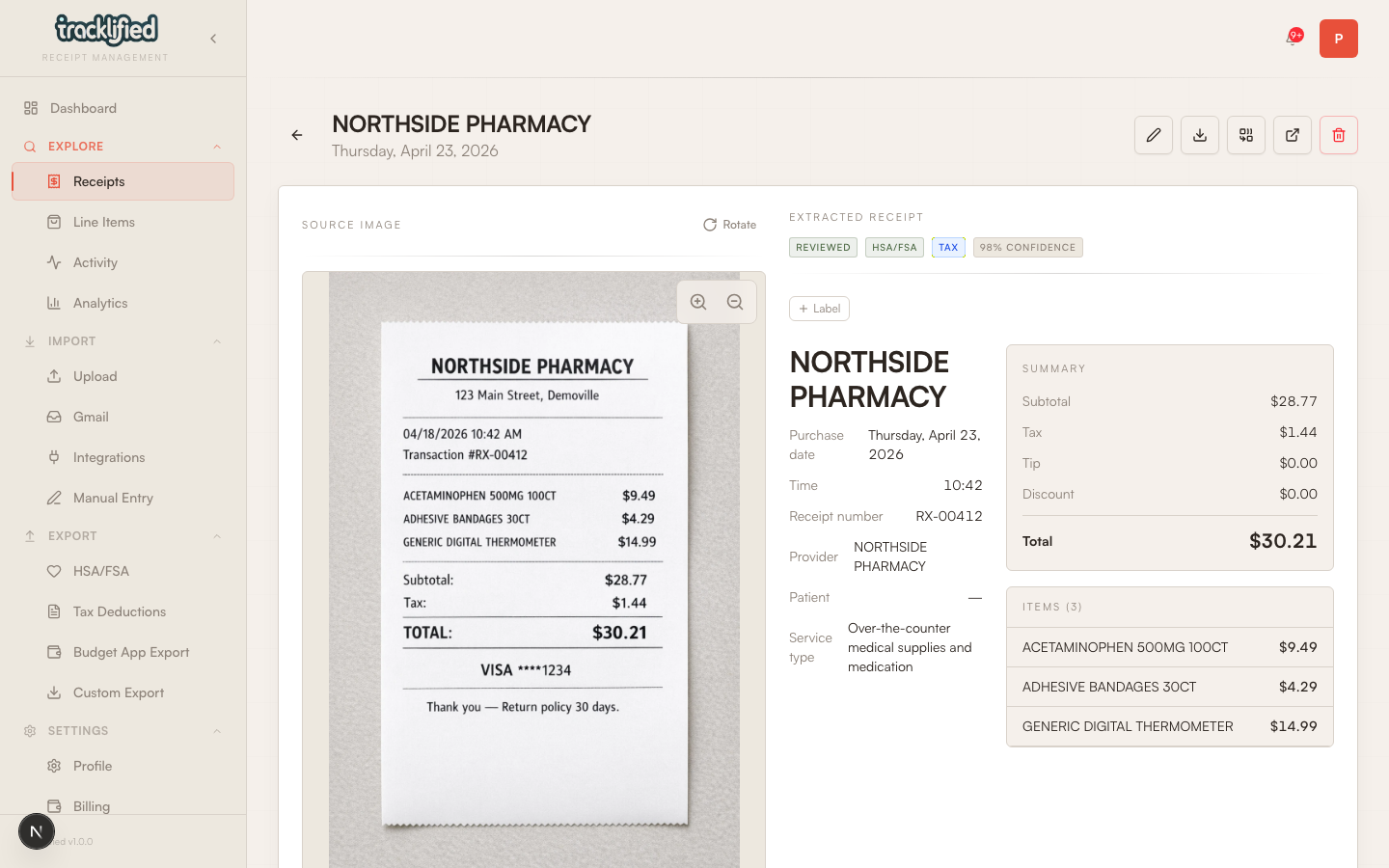
Tax-labeled receipts may also have an AI-assigned deduction category. The supported categories are:
- Medical
- Charitable
- Business
- Education
- Childcare
- Home Office
These are Tracklified's own categorization, not official IRS Schedule C lines. The AI picks the category during extraction; on the Tax Deductions page you can filter by category and clear a receipt's deduction category. Your tax software or accountant can map them to the right schedule.
Filtering and exporting at tax time
Go to Tax Deductions in the dashboard (/dashboard/tax).
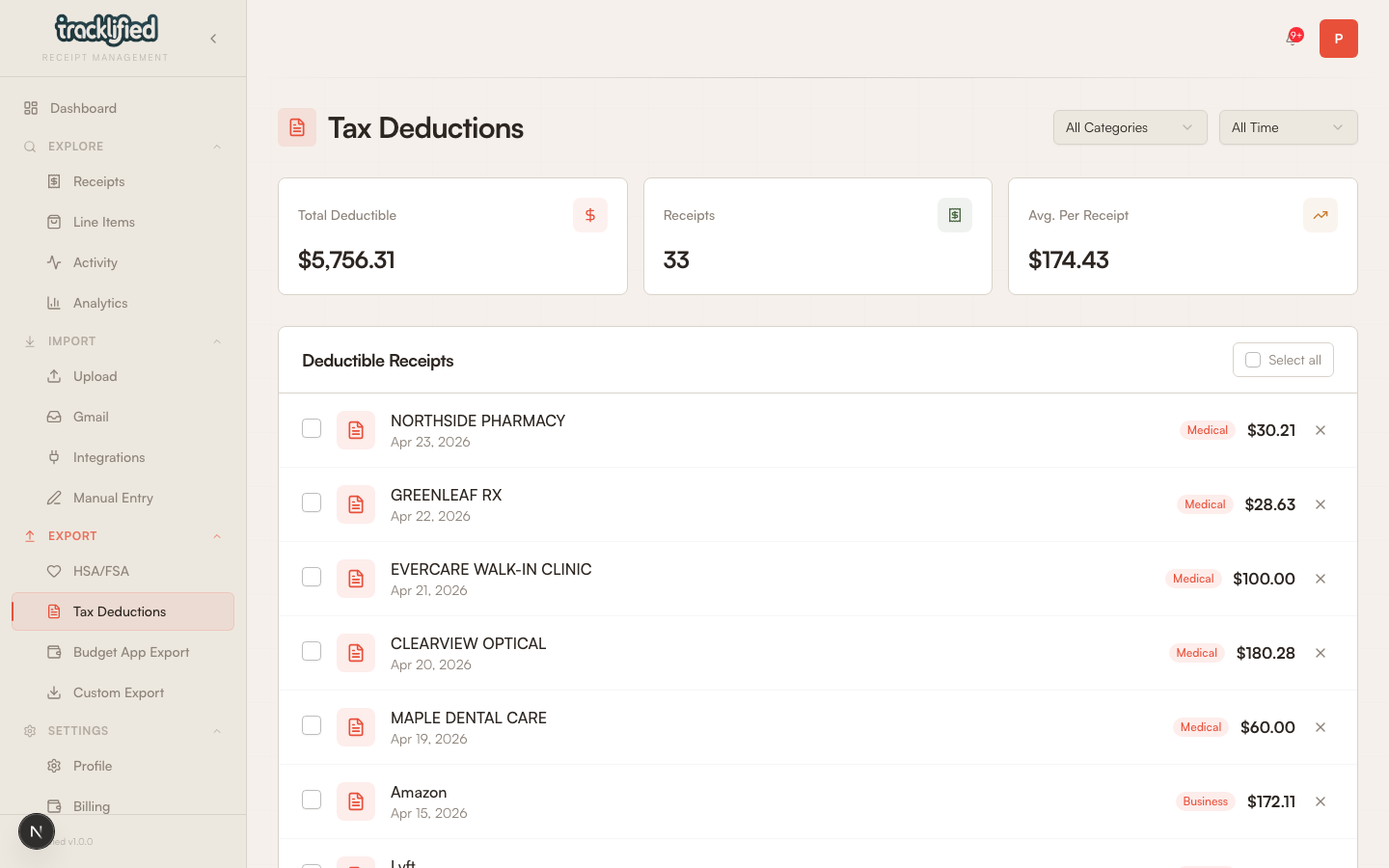
Pick the year and optionally a category. The page shows overall stats for deductible receipts and lets you narrow the list. Exports use the standard endpoint:
- CSV — flat rows
- XLSX — Excel-native
- JSON — structured
- ZIP — bundle with receipt images
The standard spreadsheet exports don't include a separate deductionCategory column, so filter before exporting if your accountant wants each category as a separate file.
What to give your accountant
Most accountants want the CSV or XLSX. If they want the original images, send the ZIP. Receipts stay in your account indefinitely, so you can re-export if your accountant wants something different.